Hello, world! for the Apple IIGS
Note: This article assumes you’ve configured an Apple IIGS emulator to use ORCA C for development. This topic is covered in Apple IIGS and C development environment.
Let’s create a ‘Hello World’ program for the Apple IIGS.
Open the ORCA folder. This is where the desktop environment can be launched. The launcher is called ORCA.Sys16.
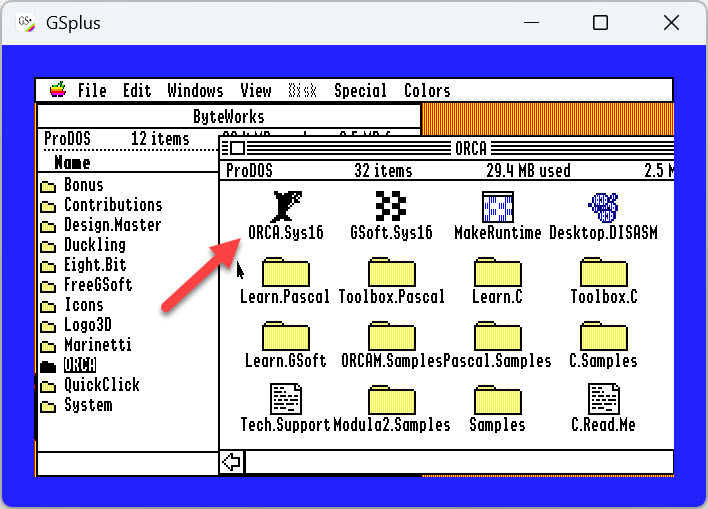
Double-click on the ORCA.Sys16 icon to launch the desktop environment.
Prism
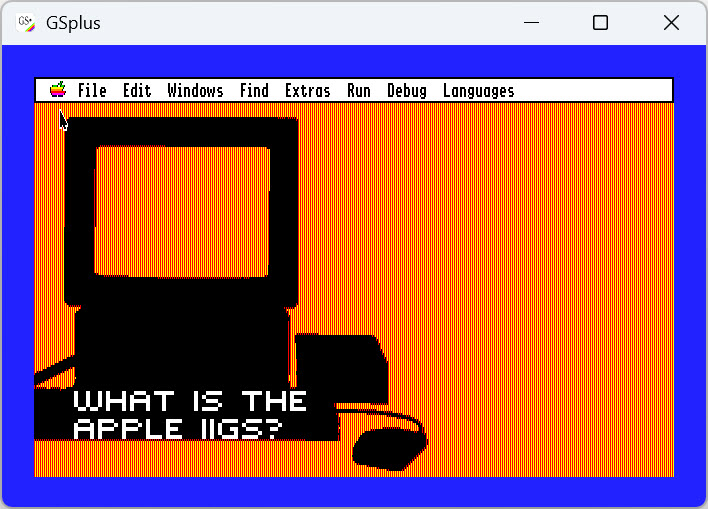
The environment shown here is called prism. Prism is able to call the other programs in the toolchain to carry out their functions. An editor is included, as well as a compiler, assembler, and linker.
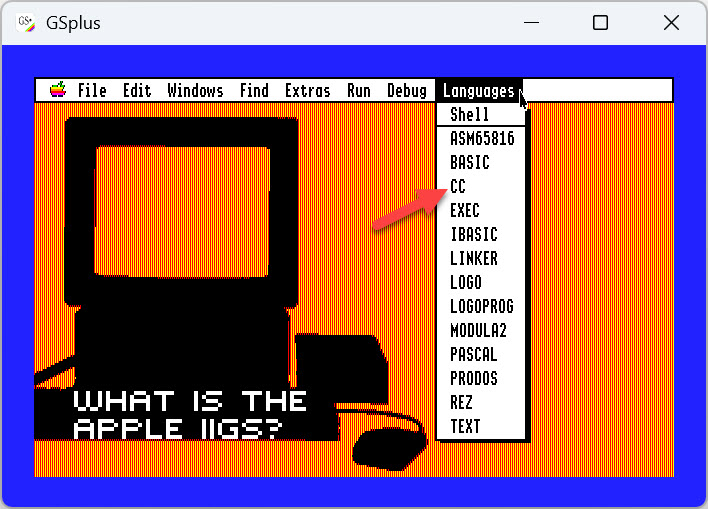
 Go to the Languages menu and select CC.
This changes the language mode prism operates in to the C programming language.
Go to the Languages menu and select CC.
This changes the language mode prism operates in to the C programming language.
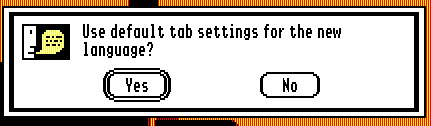
Prism will ask if you want to keep the same tab settings. Click Yes.
Prism is now in C language mode. Let’s write a hello, world program.
Select New from the File menu to create a new file.
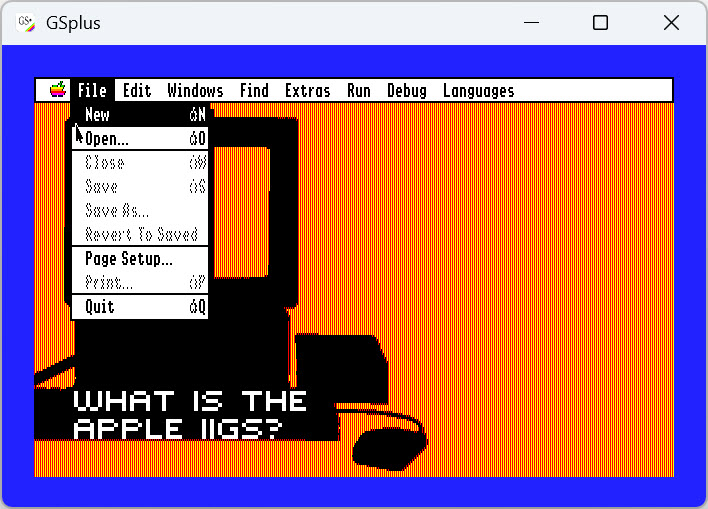
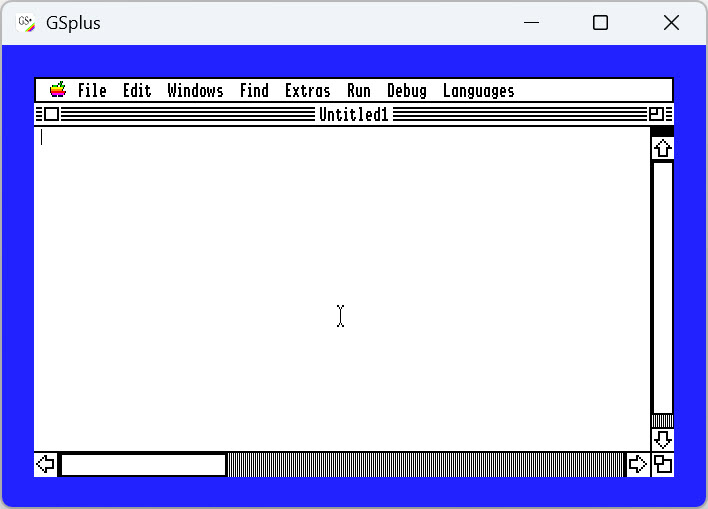
Prism creates a new file called Untitled1.
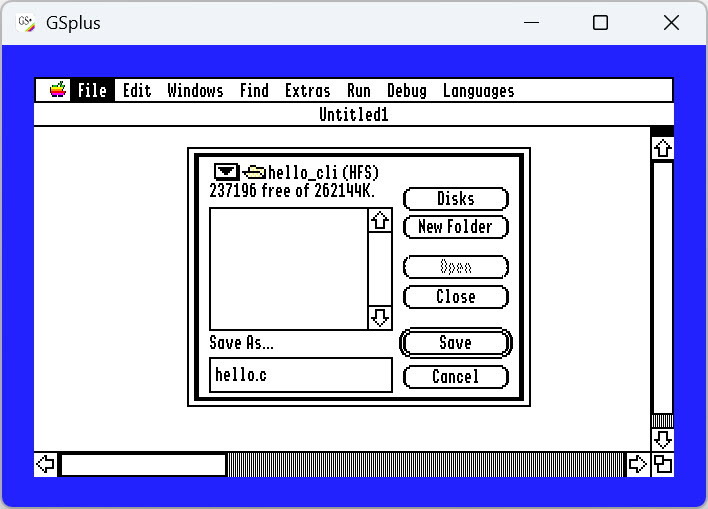
Let’s give the file a name and save it. Saving the file is an important step for ORCA.
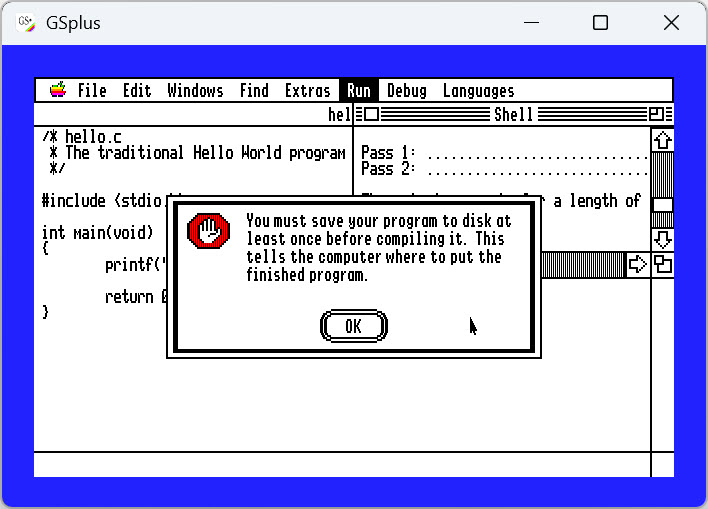
If you don’t save the file, you’ll run into the following error.
Now enter the hello, world program. Then select Run > Compile To Disk.
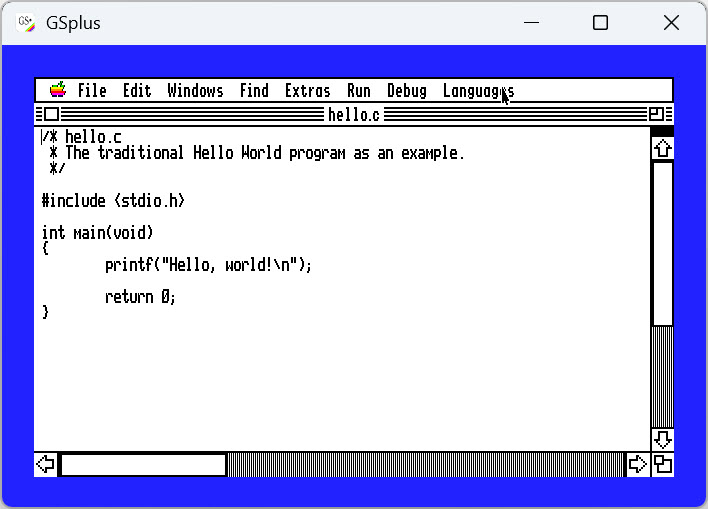
Now that it’s compiled, let’s execute the program. Select Run > Execute.
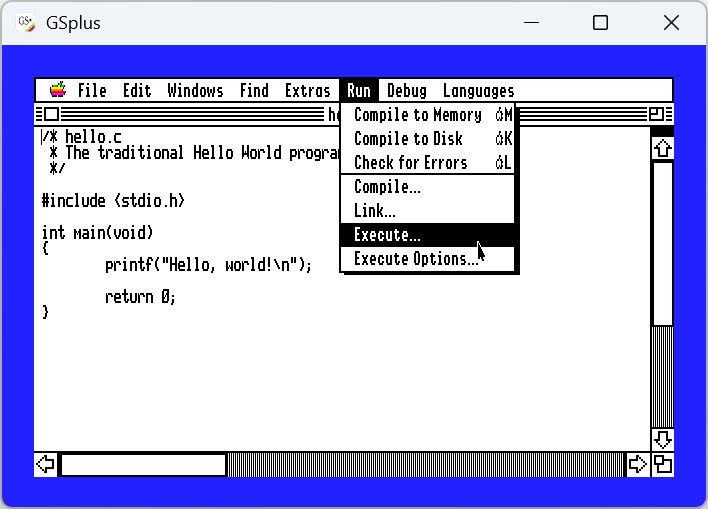
Select the file we compiled (hello). Click Open.
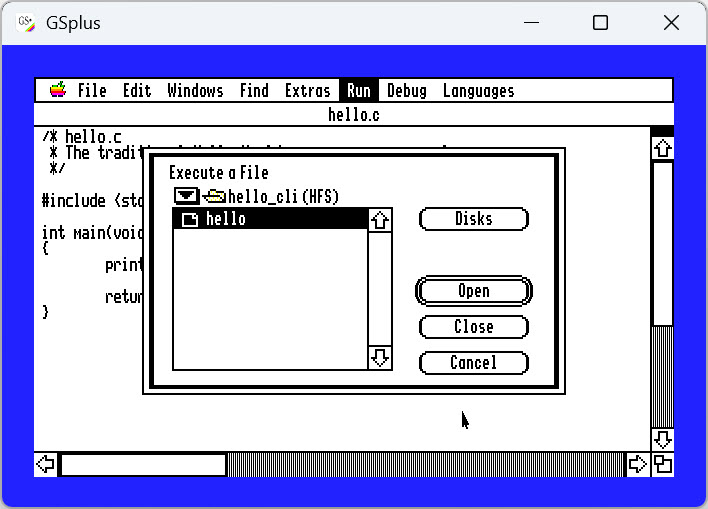
Then… nothing happens. Or so it appears. Select Windows > Shell in prism.
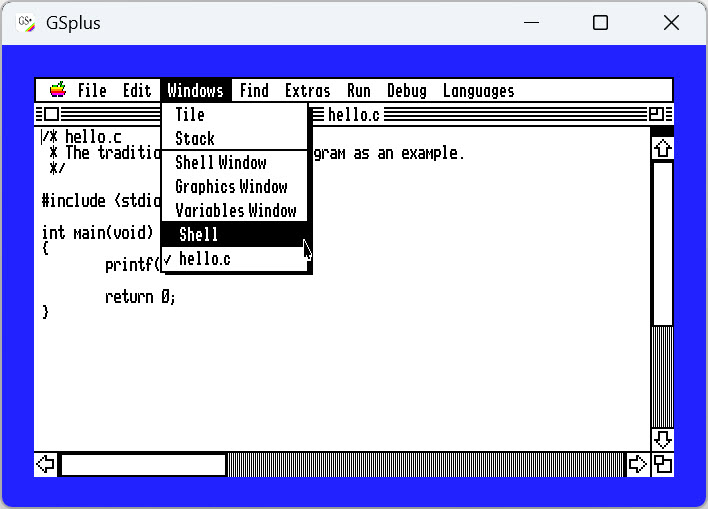
Now we can see the compile messages, as well as the greeting from our program.
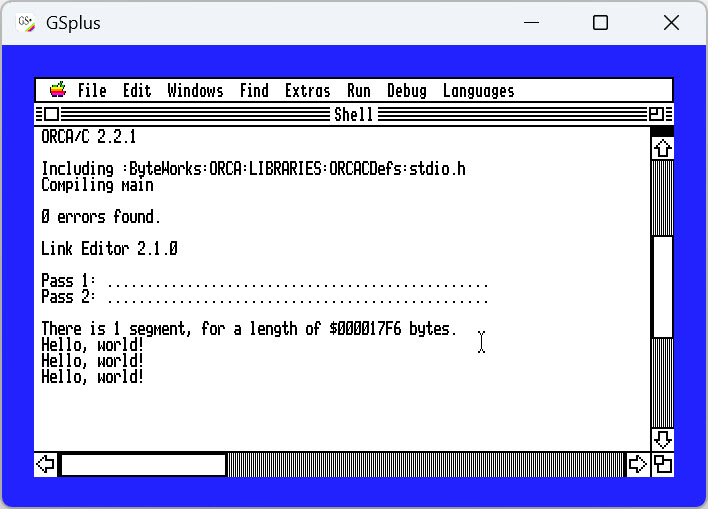
Programs that use command-line input and output as in traditional programming examples
are able to run in Prism’s shell.
They will not work as a regular Finder application, though,
since Finder doesn’t have a concept of a command line.
When you quit Prism, you’ll get the following message.
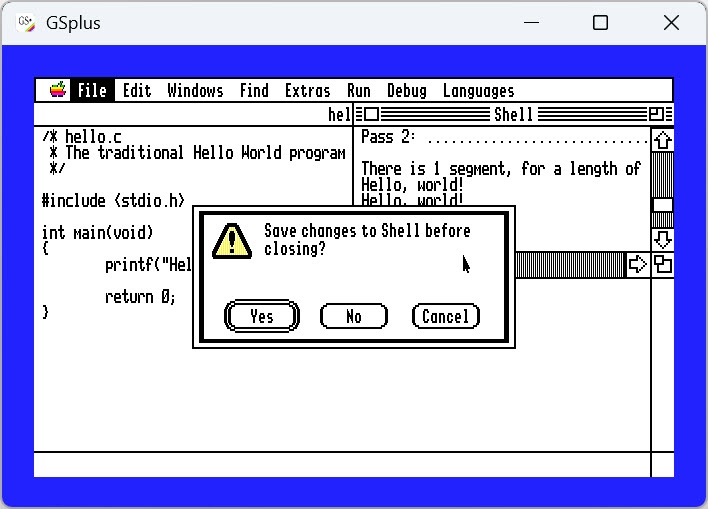
It’s OK to say No here, and not save the Shell contents.
Here are the files output by the compiler. You can see from the icon that Finder wants to treat hello as an application.
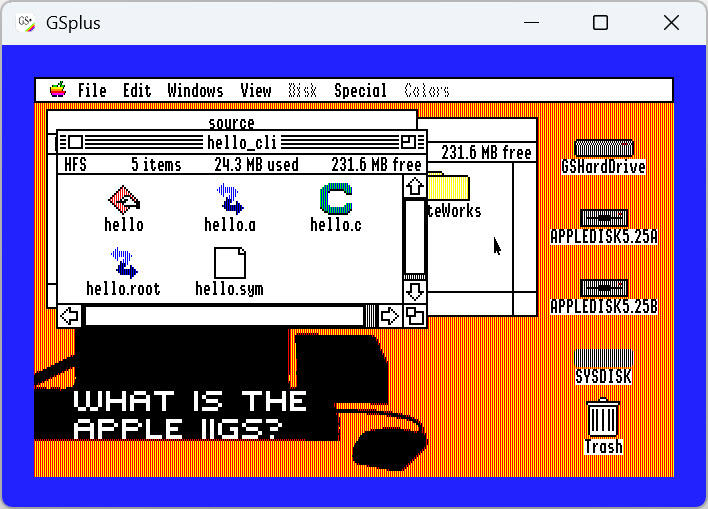
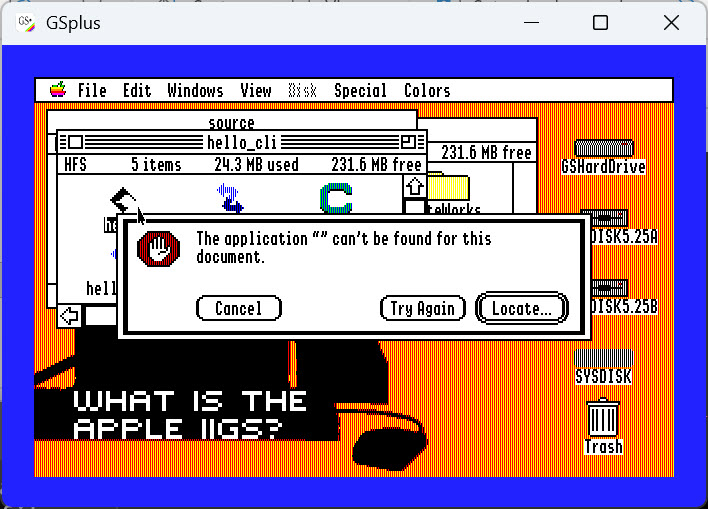
But it’s not able to find the application to run it.
This document is meant to show how to configure an Apple IIGS emulator to run Apple GS/OS and then to install the software to do C software development. While there are several emulators available, I use GSplus Emulator.
There are several important parts to a working emulator setup. They are:
- GSplus application
- Apple IIGS ROMs
- Apple IIGS disk image
- ORCA Compiler Suite / OPUS II
GSplus
Download the latest version of GSplus from GSplus Emulator. I’m on Windows, so I downloaded the zip file.
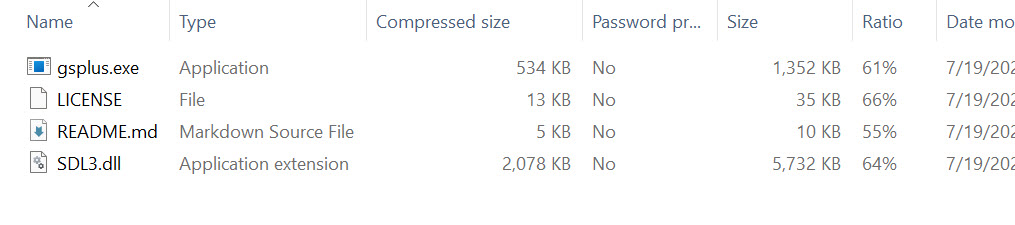
Extract the contents to your hard drive. I suggest using a folder called gsplus to hold the contents of the zip file.
ROMs
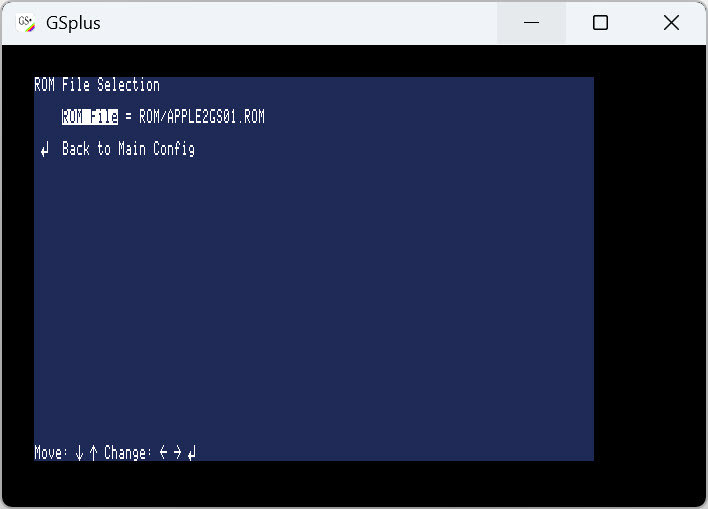
Next you will need ROM and hard disk images for GSPlus. They can be found at What is the IIGS?. I’ve been able to use ROM1 and ROM3 without problems.
ORCA Compiler Suite / OPUS II
ORCA C is available from Juiced.GS. Byteworks sells all of their software as Opus II, including the C compiler.
After buying the compiler suite, download the ZIP file for the compiler and extract the contents. The Byteworks.po file is in “The Software\For Emulators”.
In the GSPlus emulator, mount the Byteworks.po disk image.
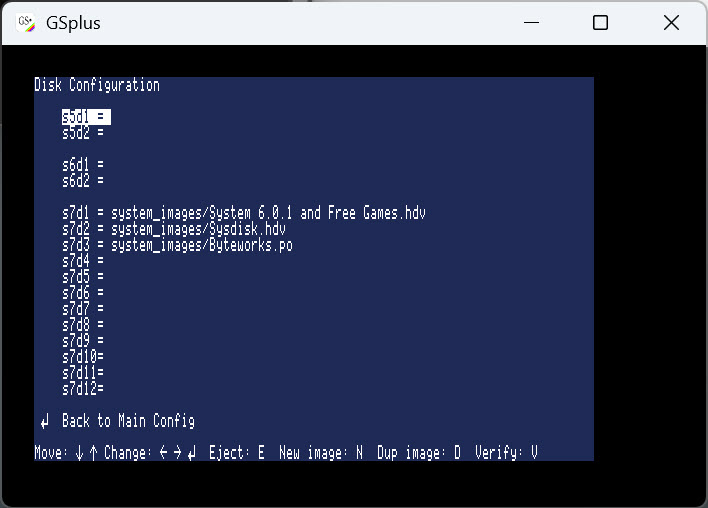
When you mount the disk image, you might be tempted to use s5d1, s5d2, s6d1, or s6d2. Those are for floppy images. Use one of the s7 drives as shown in the screenshot. Mounting the Byteworks.po file as a floppy will cause errors.
Launching the destop environment
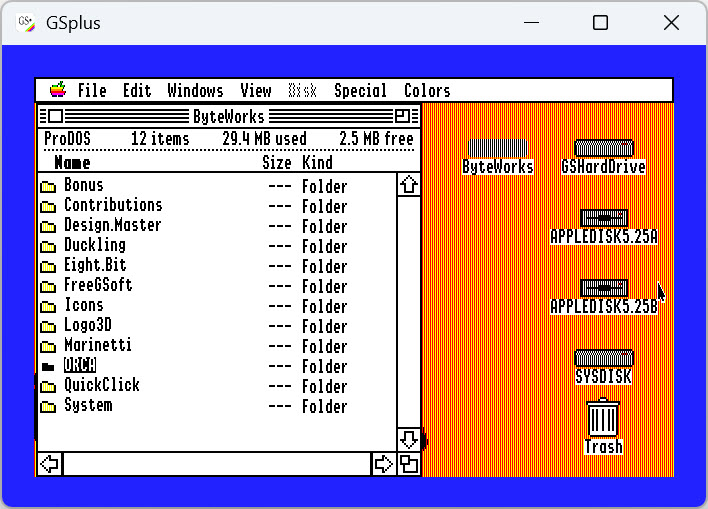
Open the ORCA folder. This is where the desktop environment can be launched. The launcher is called ORCA.Sys16.
Double-click on the ORCA.Sys16 icon to launch the desktop environment.
Prism
The environment shown here is called prism. Prism is able to call the other
programs in the toolchain to carry out their functions.
An editor is included, as well as a compiler, assembler, and linker.